Home Screen
Dispatch board
Section titled “Dispatch board”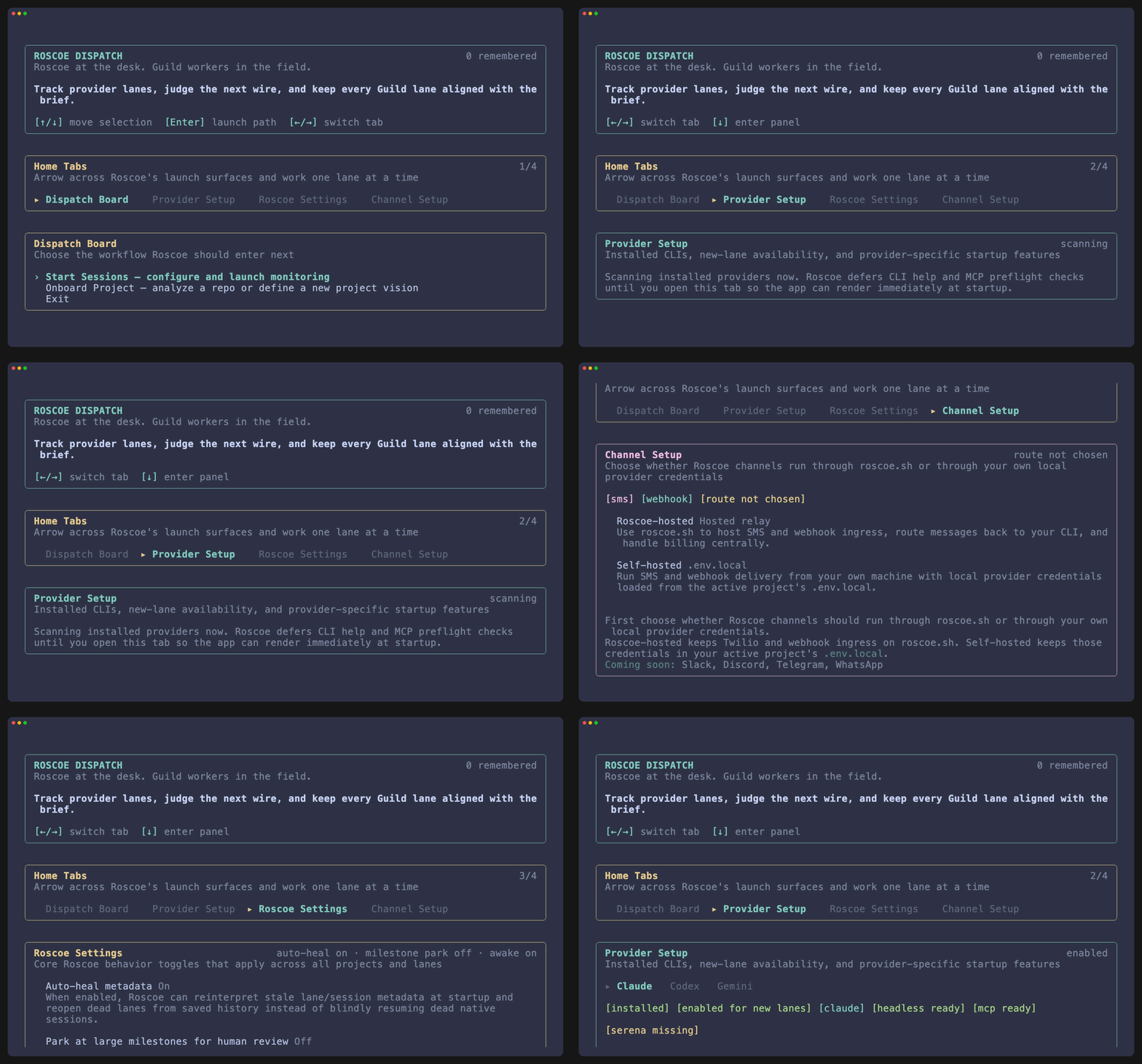
Dispatch is the first operator screen. It stays deliberately small: return to a running lane, open lane setup, open onboarding, or exit.
Start Sessions
Use this when a repo already has a saved project contract and you want to launch or resume monitored lanes.
Onboard Project
Use this when a repo needs first-time intake or the existing project brief needs a full reset.
Return to running lane
Use this when Roscoe already has an active lane and you want to jump straight back into the live workspace.
Home-screen keys
Section titled “Home-screen keys”| Keys | Action |
|---|---|
← / → | Switch between Dispatch Board, Provider Setup, Roscoe Settings, and Channel Setup. |
↑ / ↓ | Move between the tab strip and the active panel or list. |
Enter | Launch the highlighted path or activate the current action. |
Tab / Shift+Tab | Cycle tabs when focus is on the tab strip. |
Provider setup
Section titled “Provider setup”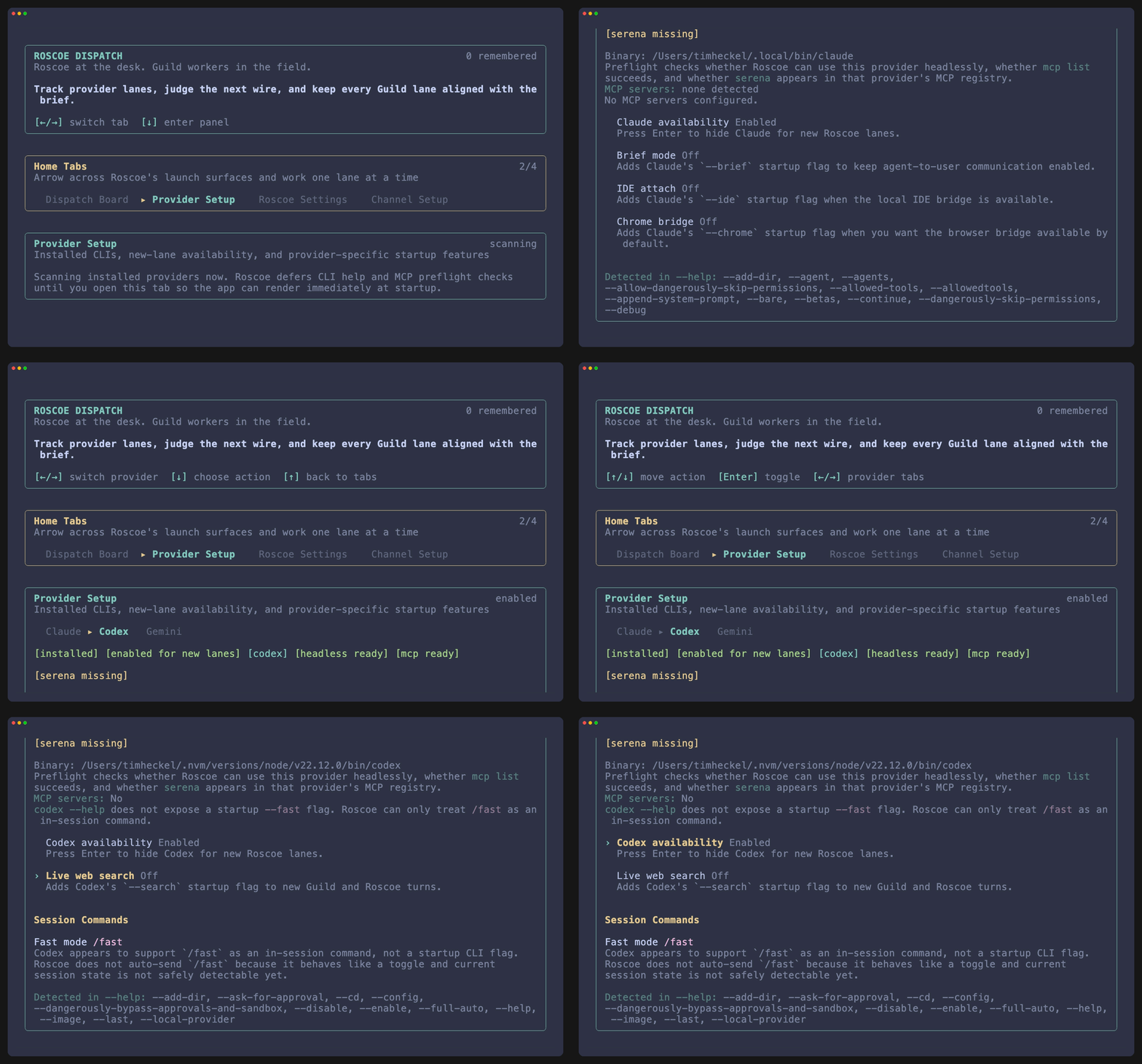
Use Provider Setup to verify the machine before you trust a new lane launch.
| Area | What it decides |
|---|---|
| Provider tabs | Which installed CLI you are inspecting. |
| Availability toggle | Whether Roscoe offers that provider for new lanes. |
| Startup toggles | Provider-specific launch flags such as Codex web search or Claude startup helpers. |
| Preflight details | Binary path, MCP visibility, Serena visibility, and any provider-specific notes. |
Roscoe settings
Section titled “Roscoe settings”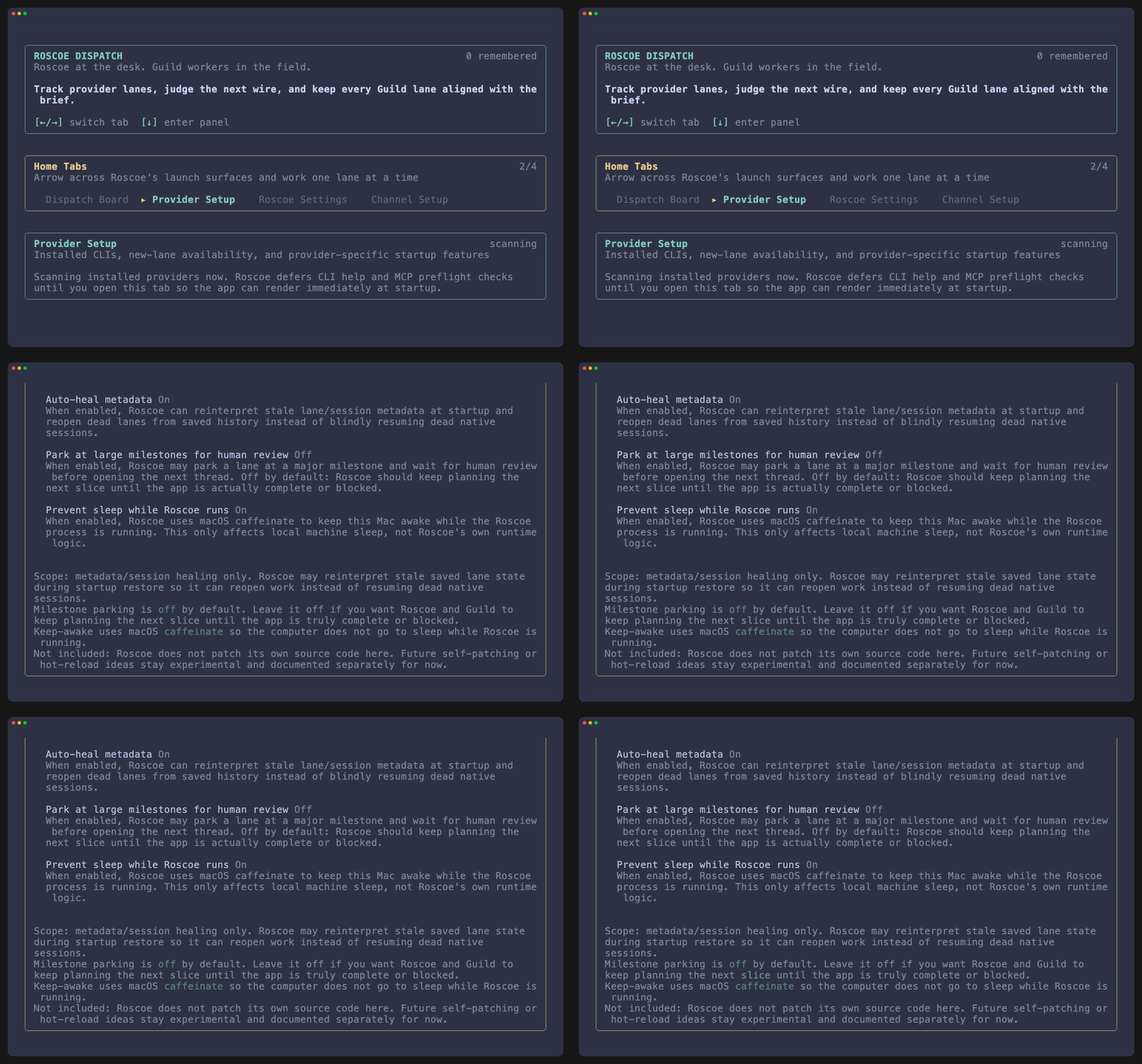
These settings are global to the local Roscoe install, not just the current project.
| Setting | What it changes |
|---|---|
| Auto-heal metadata | Lets Roscoe reinterpret stale saved lane metadata during startup restore. |
| Park at large milestones for human review | Allows Roscoe to stop at major milestones instead of opening the next slice immediately. |
| Prevent sleep while Roscoe runs | Uses native keep-awake helpers so the machine does not sleep during long sessions. |
Channel setup
Section titled “Channel setup”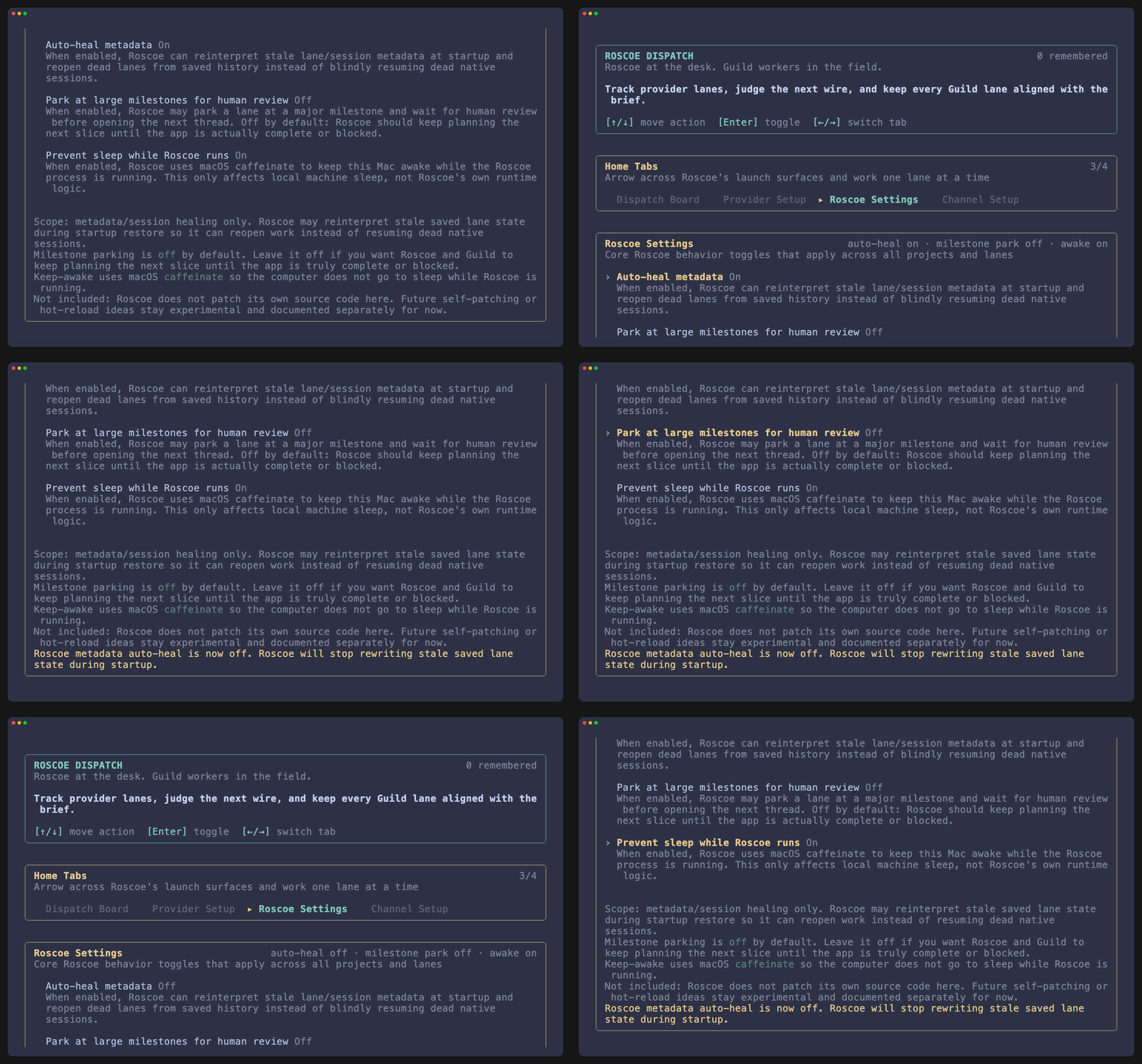
Channel Setup is where Roscoe decides how SMS and webhook traffic reach the CLI.
| Action | What it does |
|---|---|
| Roscoe-hosted | Uses roscoe.sh for billing, inbound SMS, and webhook ingress. |
| Self-hosted | Uses the active project’s .env.local Twilio credentials and local delivery path. |
| Phone Number | Stores the destination number Roscoe should use for milestone texts and relay control. |
| Send Hosted Test SMS / Send Test SMS | Confirms the chosen route can actually deliver a Roscoe wire. |
| Checkout / Link This CLI | Finishes hosted relay activation after billing and device-link approval. |
Normal usage patterns
Section titled “Normal usage patterns”- First run: start at Dispatch and choose Onboard Project.
- Daily use: start at Dispatch and choose Start Sessions.
- Provider sanity check: open Provider Setup when a new machine or CLI install needs verification.
- Roscoe-wide tuning: use Roscoe Settings for restore and milestone behavior that should persist across projects.
- SMS setup: open Channel Setup, choose the route, configure the phone, and verify delivery before relying on the wire.